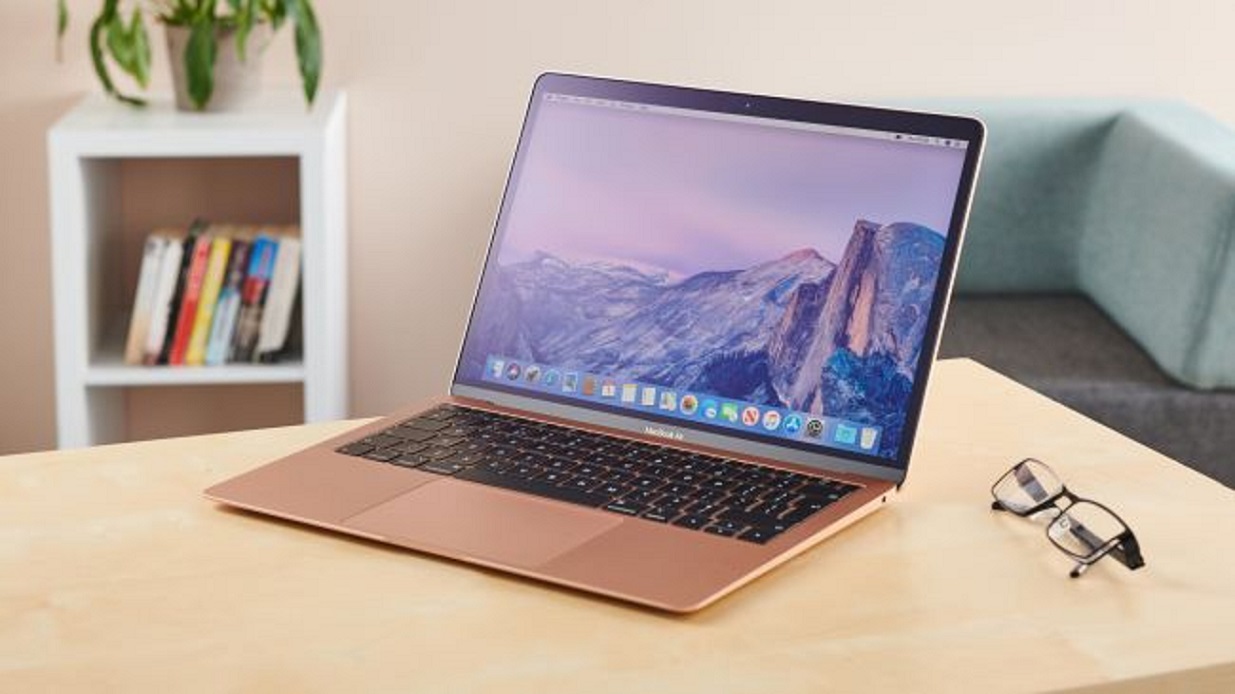
Resetting your MacBook Air is a useful troubleshooting step when you encounter issues such as a frozen screen, malfunctioning apps, or sluggish performance. The process is straightforward, and you can reset your MacBook Air in a few different ways, depending on your specific needs.
In this article, we’ll go over the various methods you can use to reset your MacBook Air, the situations in which each method is most appropriate, and the steps you need to follow to complete each process.
Method 1: Resetting the MacBook Air SMC
The System Management Controller (SMC) is responsible for managing power and thermal management, among other things. Resetting the SMC can be useful in situations where you’re experiencing power-related issues, such as your MacBook Air not turning on, or if the battery is not charging.
Here’s how to reset the SMC on your MacBook Air:
Step 1: Shut down your MacBook Air. Step 2: Press and hold the Shift + Control + Option keys and the power button simultaneously for 10 seconds. Step 3: Release all the keys and the power button. Step 4: Turn on your MacBook Air as usual.
Method 2: Resetting the MacBook Air NVRAM/PRAM
The Non-Volatile Random Access Memory (NVRAM) or Parameter RAM (PRAM) stores certain settings that your MacBook Air uses to communicate with the hardware. Resetting the NVRAM/PRAM can help resolve issues with your MacBook Air’s audio, display, and startup disk selection.
Here’s how to reset the NVRAM/PRAM on your MacBook Air:
Step 1: Shut down your MacBook Air. Step 2: Press the power button to turn on your MacBook Air. Step 3: Immediately press and hold the Command + Option + P + R keys simultaneously. Step 4: Hold down the keys for at least 20 seconds until you hear the startup sound twice. Step 5: Release the keys and let your MacBook Air start up normally.
Method 3: Resetting the MacBook Air to Factory Settings
If you’re planning to sell your MacBook Air or want to start fresh with a clean installation, resetting your MacBook Air to factory settings is the way to go. This process erases all the data on your MacBook Air, so make sure to back up your important files before proceeding.
Here’s how to reset your MacBook Air to factory settings:
Step 1: Shut down your MacBook Air.
Step 2: Press the power button to turn on your MacBook Air.
Step 3: Immediately press and hold the Command + R keys simultaneously.
Step 4: Keep holding the keys until the Apple logo appears on the screen.
Step 5: Select Disk Utility and click Continue.
Step 6: Choose your startup disk and click Erase.
Step 7: Enter a name for your startup disk and choose the format (APFS or Mac OS Extended).
Step 8: Click Erase to confirm the process.
Step 9: Once the process is complete, quit Disk Utility and select Reinstall macOS from the utilities window.
Step 10: Follow the prompts to reinstall macOS and set up your MacBook Air as new.
Here are some additional tips and considerations to keep in mind when resetting your MacBook Air:
- Backup your data: Before resetting your MacBook Air, make sure to back up all of your important files to an external hard drive, iCloud, or other cloud storage service. Resetting your MacBook Air will erase all of the data on your device, so it’s essential to have a backup of your files.
- Keep your MacBook Air plugged in: When resetting your MacBook Air, it’s essential to keep it plugged into a power source. Interrupting the reset process can cause additional issues with your device.
- Try other troubleshooting steps first: Before resetting your MacBook Air, try other troubleshooting steps such as force-quitting frozen apps, running disk utility, or updating your software. These steps may solve the problem without the need to reset your device.
- Consider contacting Apple support: If you’re unsure about how to reset your MacBook Air, or if you’re experiencing issues that aren’t resolved by resetting your device, consider contacting Apple support for assistance.
- Know your Apple ID credentials: When resetting your MacBook Air to factory settings, you’ll need your Apple ID credentials to reinstall macOS. Make sure to have your Apple ID username and password handy.
- Resetting the MacBook Air may not solve all issues: While resetting your MacBook Air can resolve many common issues, it may not solve all problems. If you’re still experiencing issues after resetting your device, consider seeking professional assistance from an Apple store or authorized repair center.
- Resetting the SMC may require different key combinations: Depending on the model of your MacBook Air, the key combinations for resetting the SMC may be different. Check Apple’s website or user manual for specific instructions for your device.
- Resetting the NVRAM/PRAM may affect some settings: When you reset the NVRAM/PRAM, your MacBook Air will forget some settings, such as your time zone and speaker volume. You’ll need to set these preferences again after resetting your device.
- Resetting your MacBook Air to factory settings may take time: Resetting your MacBook Air to factory settings can take several hours, depending on the speed of your device and the size of your hard drive. Make sure to allocate enough time for the process and avoid interrupting the reset process.
- Keep your software up to date: To prevent future issues with your MacBook Air, make sure to keep your software up to date. You can check for software updates in the App Store or by going to System Preferences > Software Update.
Conclusion
Resetting your MacBook Air can be a useful troubleshooting step when you’re experiencing issues with your device. Depending on your situation, you can choose to reset the SMC, NVRAM/PRAM, or your MacBook Air to factory settings. By following the steps outlined in this article, you can easily reset your MacBook Air and get it back up and running smoothly.